AI Image Generator and Editor

GPT Image 2.5 Image Generator and Editor

Turn a description into a new image, or upload your own photo and make focused edits while specifying the subject details you want to keep.

Create or Edit an Image
Image task
Model
Output settings1K · Medium · 1:1 · PNG
Resolution
Quality
Output format

Resolution, quality, aspect ratio, and file format stay folded until you need them.

Credit cost2 credits

Model Overview

What Is GPT Image 2.5?

GPT Image 2.5 is OpenAI's image generation and editing model family, with Flare and Sunburst variants.

Compared with Images 2.0, this version improves how faithfully images reflect their references, how precisely requested edits are applied, and how consistently details carry through successive edits. Improvements to lighting and textures also help scenes look more convincing. These changes matter when a recognizable subject needs to remain coherent as an image develops.

Flare emphasizes quicker everyday creation, while Sunburst emphasizes precision for more demanding work. Both support image generation, editing, and focused changes that preserve important subject details. The difference is a trade-off in emphasis, with fine editing available across the family.

Creation and Editing

Key Features of GPT Image 2.5

Create new images, develop existing ones, and prepare the finished output for your design.

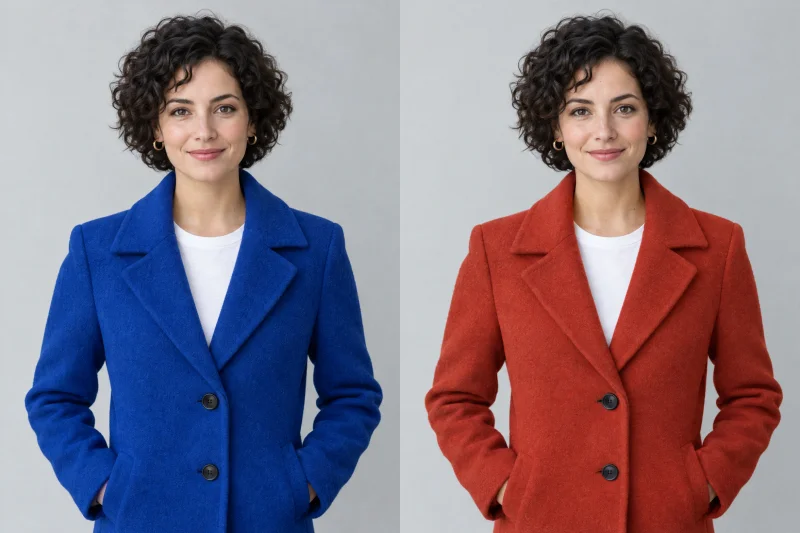
Matching portraits with a blue coat on the left and a terracotta coat on the right, retaining the same face, pose and background

Focused Edits and Subject Preservation

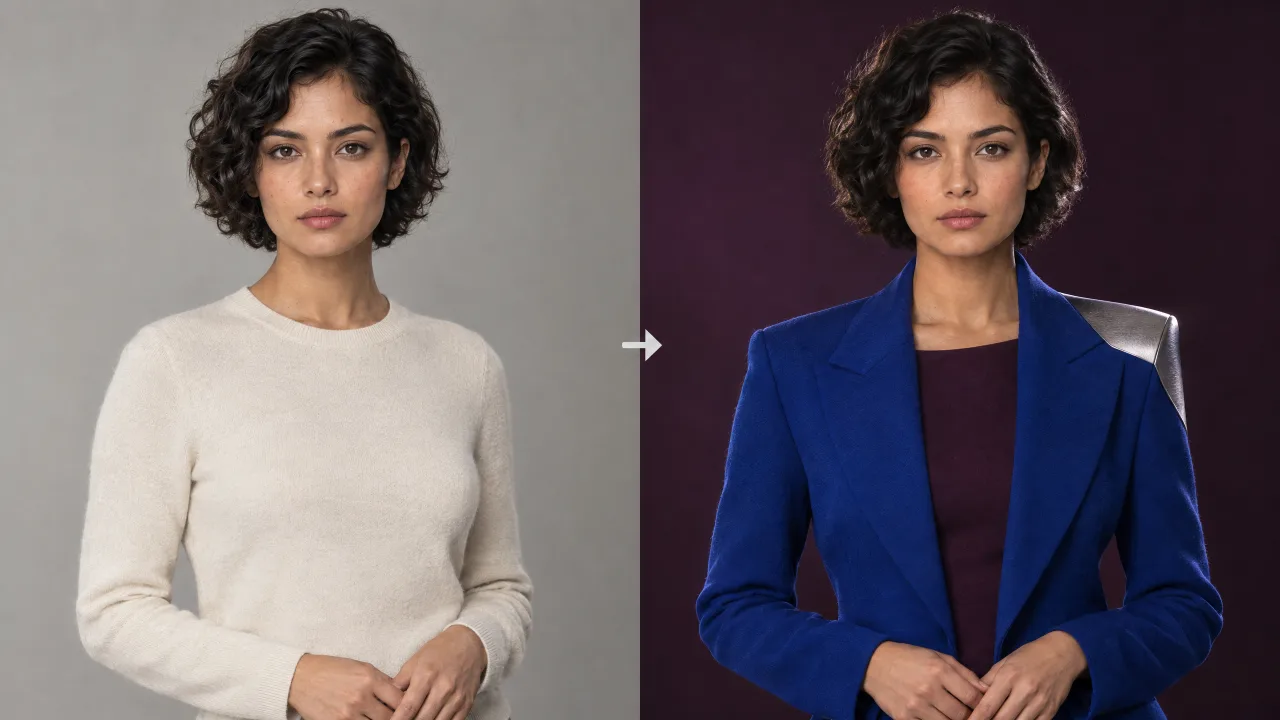
Focused editing lets you describe what should change and which subject details should stay recognizable. GPT Image 2.5 uses those instructions to guide changes within a source image, helping you adjust clothing, background, or lighting while retaining the details that make the subject familiar. Both Flare and Sunburst support this control.
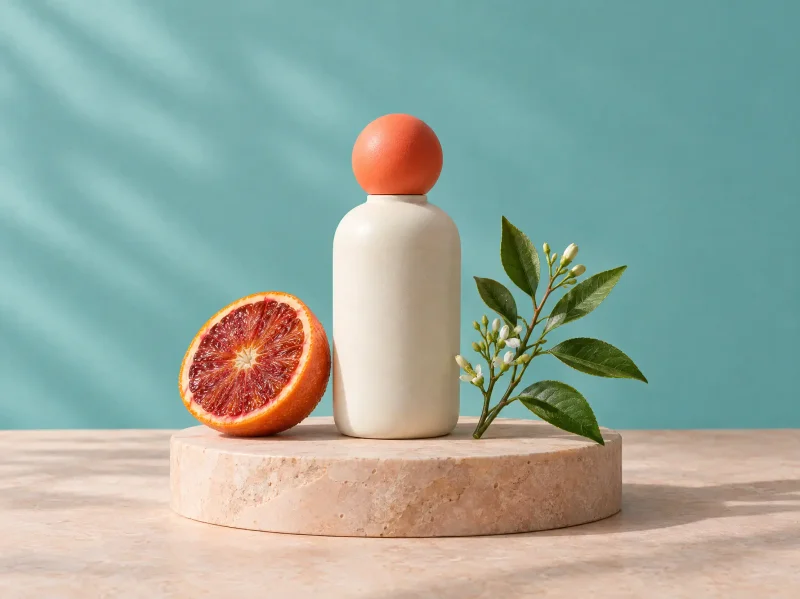
Flare-generated perfume still life with blood orange
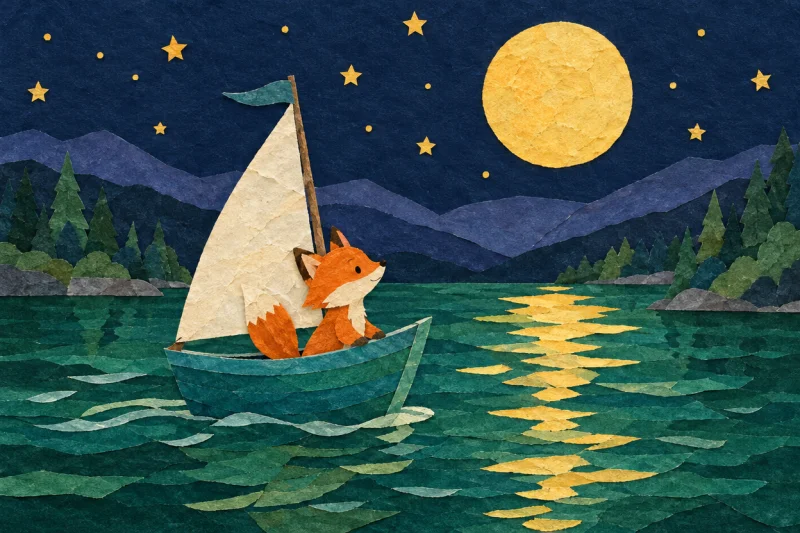
Original cut-paper illustration of a fox sailing under a moon

Text-to-Image Generation

Text-to-image generation turns a written idea into a new image. Your description can establish the subject, surroundings, composition, and style, giving you a starting point for illustrations, campaign concepts, or original scenes when you do not have a source photo.

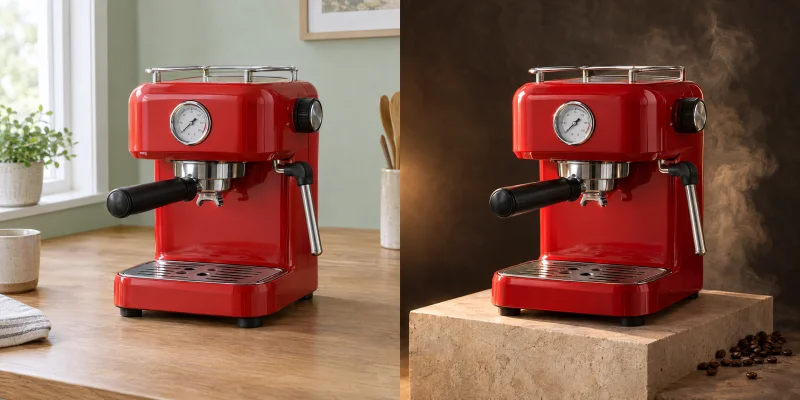
The same red espresso machine in a daylight kitchen on the left and a dramatic studio setting on the right

Uploaded Image Editing

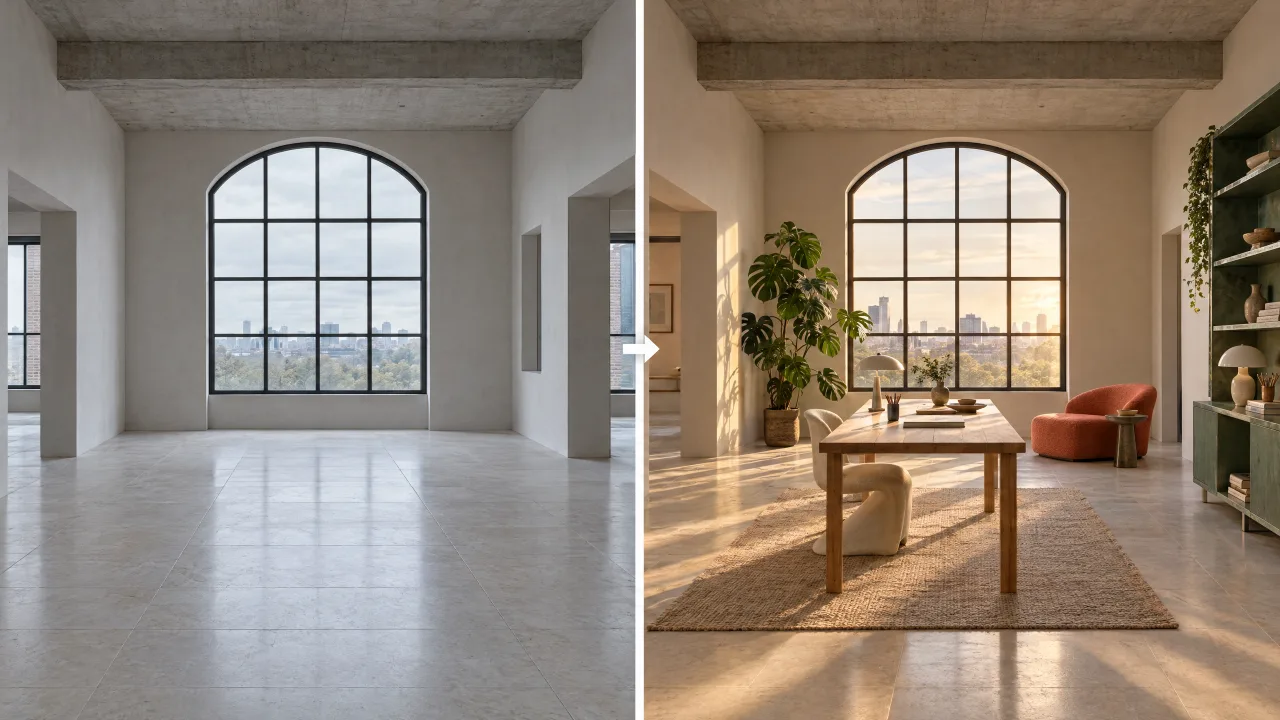
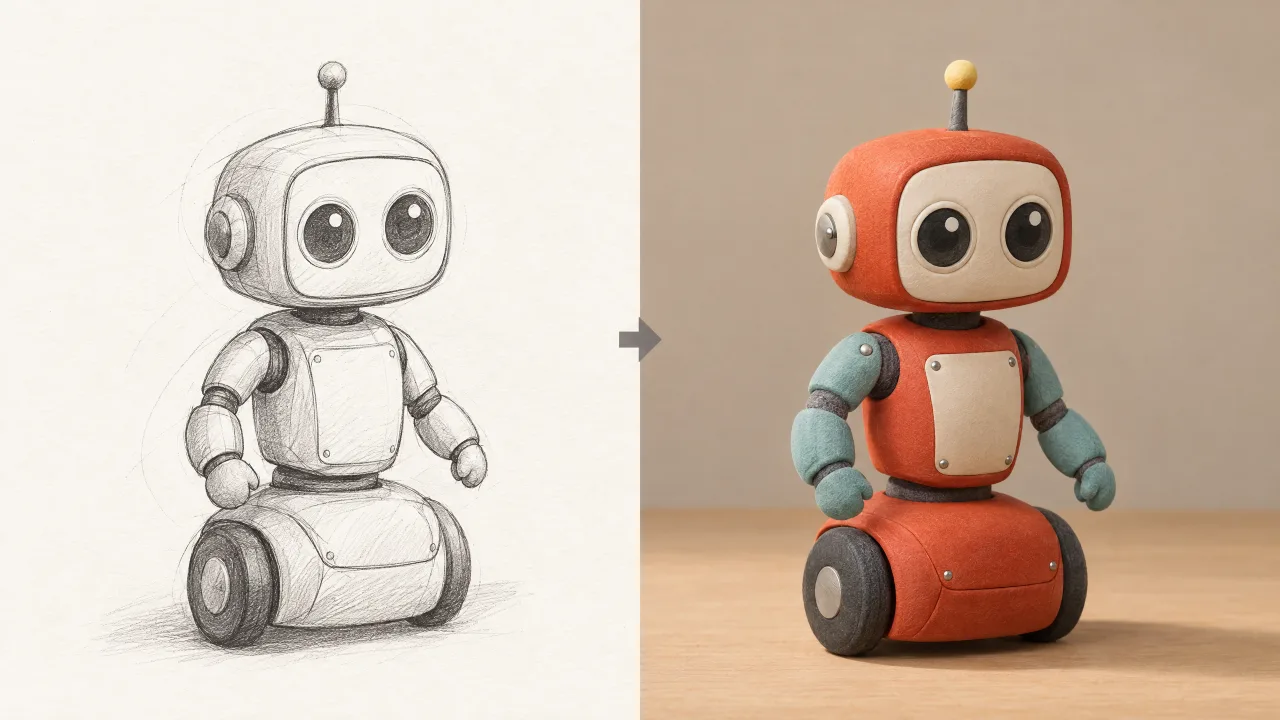
Uploaded image editing combines a photo or illustration you already have with written instructions for a revised version. The source image provides the visual starting point, while your words describe how to change it. This lets you develop a product photo, adapt an illustration, or explore a different setting using your existing material.

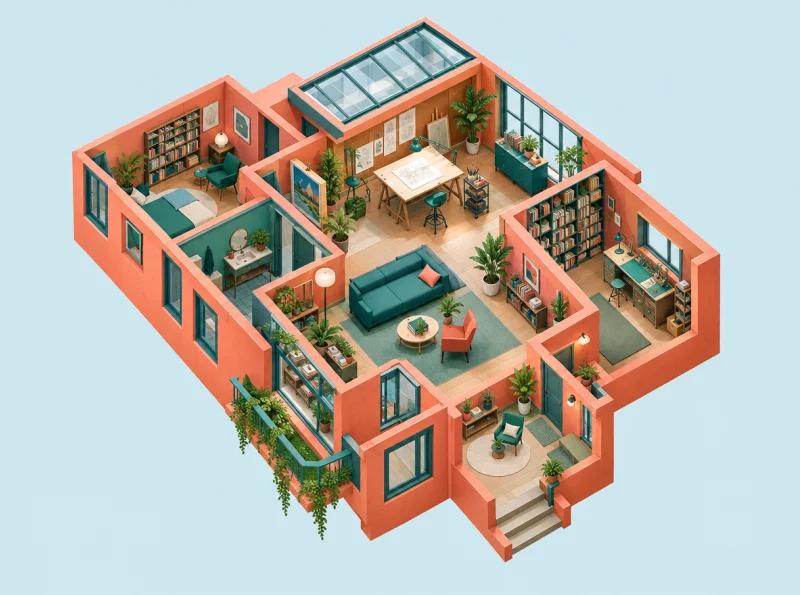
Axonometric room concept, not a model quality or speed comparison

Flare and Sunburst Model Choice

Flare prioritizes speed for exploring ideas and routine image tasks; Sunburst takes more time to emphasize precision in demanding edits and intricate images. Both generate and edit, including focused changes. The choice lets you weigh quicker iteration against greater attention to detail when developing a new image or revising an existing one.

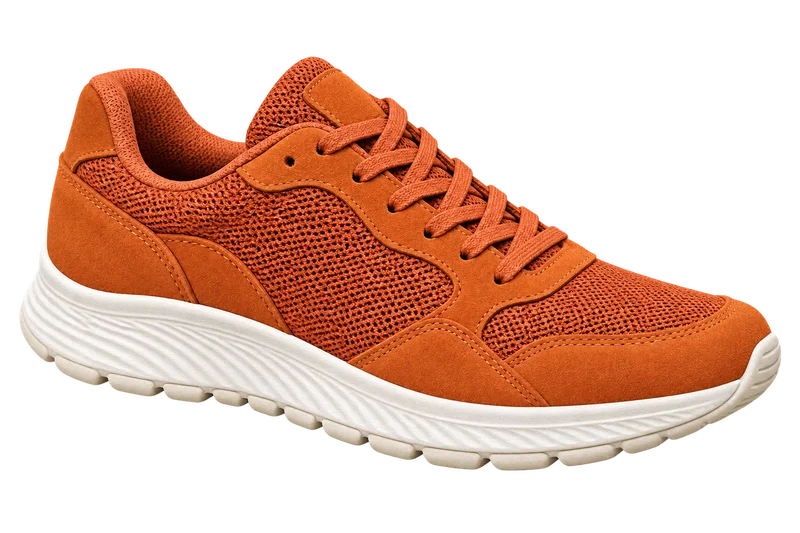
Independent sneaker illustration with genuine alpha transparency; not a model test

Transparent Background Output

Transparent output produces an image you can place over another background. It is useful for a product cutout, illustration, or decorative element that needs to sit inside a larger design. Compatible PNG or WebP output keeps the transparent areas available for that layout.

Image Size, Aspect Ratio, and Quality

Size and aspect ratio options help shape an image for a portrait post, square graphic, or wide banner. Quality options let you choose the level of detail within the selected model's supported range. These controls address different needs: the image's dimensions and the quality of its rendering.

Get Started

How to Use GPT Image 2.5

Start with an idea or an existing image, then create a result you can use.

  1. Step 1: Describe Your Image or Upload a Source

    Write what you want to create. For an edit, upload your image and describe the change, including any subject details you want to retain.

  2. Step 2: Choose Your Model and Output Options

    Select Flare or Sunburst, then choose the available size, aspect ratio, quality, and background options for your image. Generate the result and review whether it matches your request.

  3. Step 3: Download and Save Your Image

    Download the completed image and save it to your device for use in your post, presentation, website, or design.

Read the GPT Image 2.5 guide

Ideas for Your Images

GPT Image 2.5 Use Cases

Use generation and editing for everyday creative work.

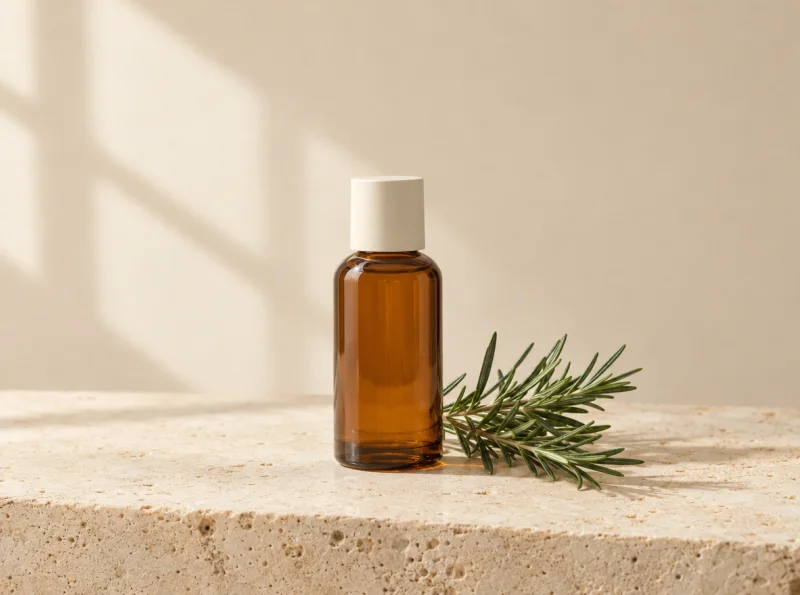
Amber skincare bottle and rosemary as a potential source for a background change

Product Photo Variations

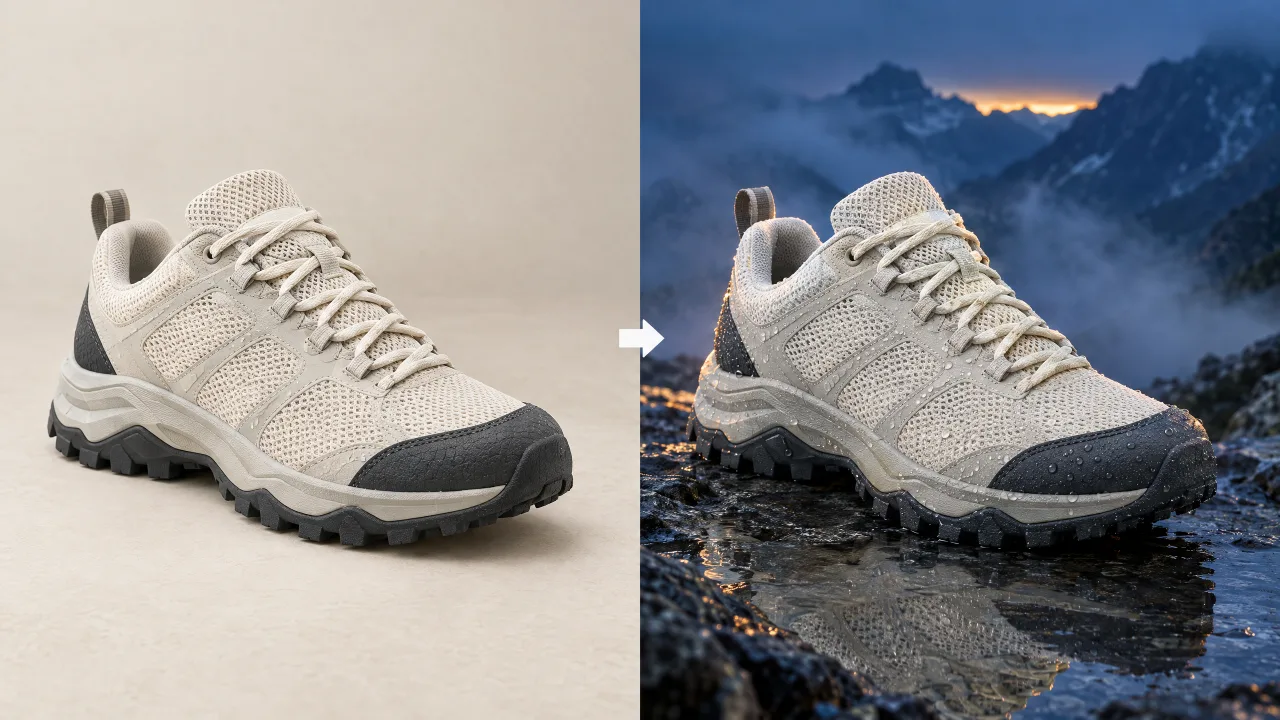
Develop an existing product photo with a different setting or background. Focused edits help you request a new presentation while identifying product details that should remain recognizable.

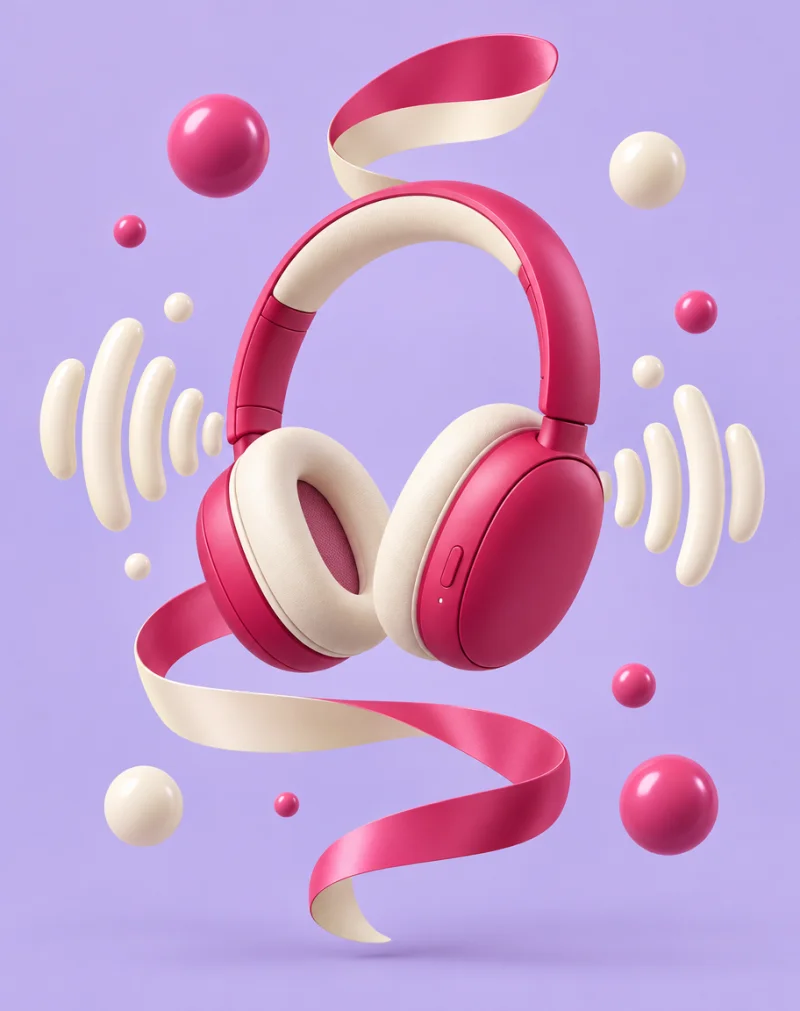
Original 3D artwork of raspberry headphones on a lavender background

Social Media Graphics

Create an original image around the subject and mood of a post. A portrait or square composition gives the visual a shape suited to the space where it will appear.

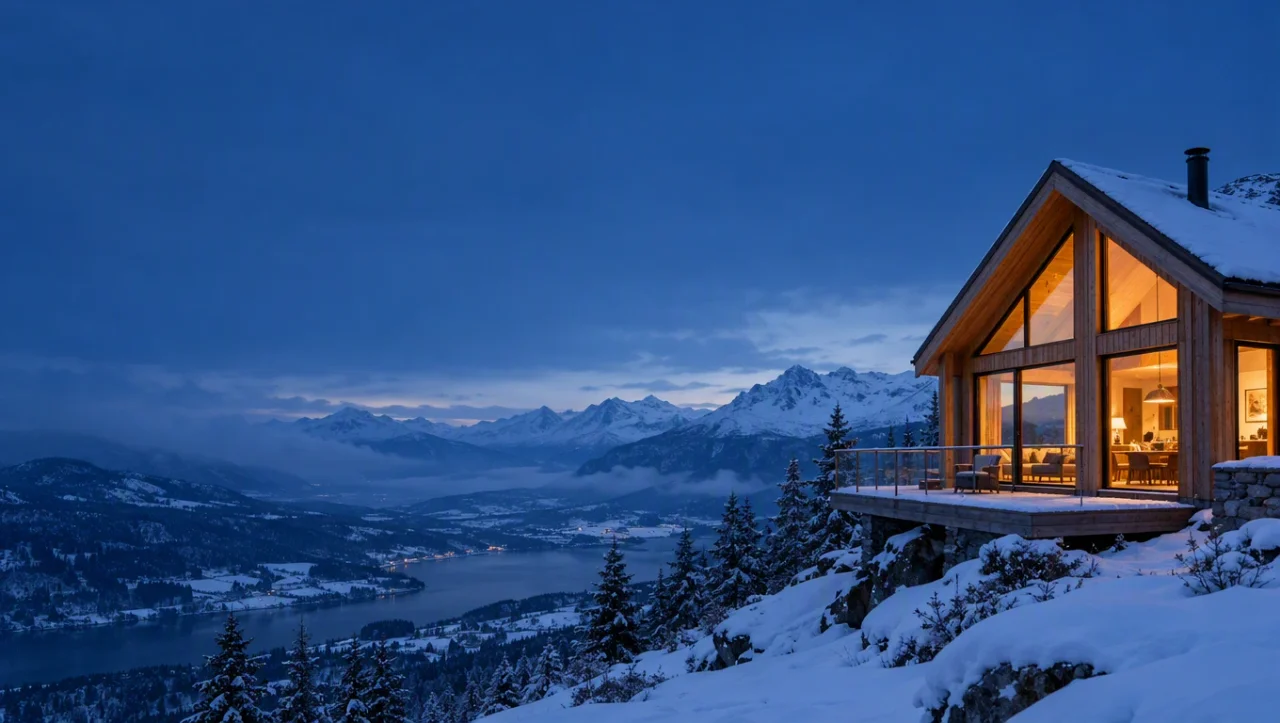
Wide alpine cabin scene with open space on the left

Website and Campaign Banners

Generate a wide scene for a website section or campaign. Describe the composition and where you want open space so the image can work alongside your headline and buttons.

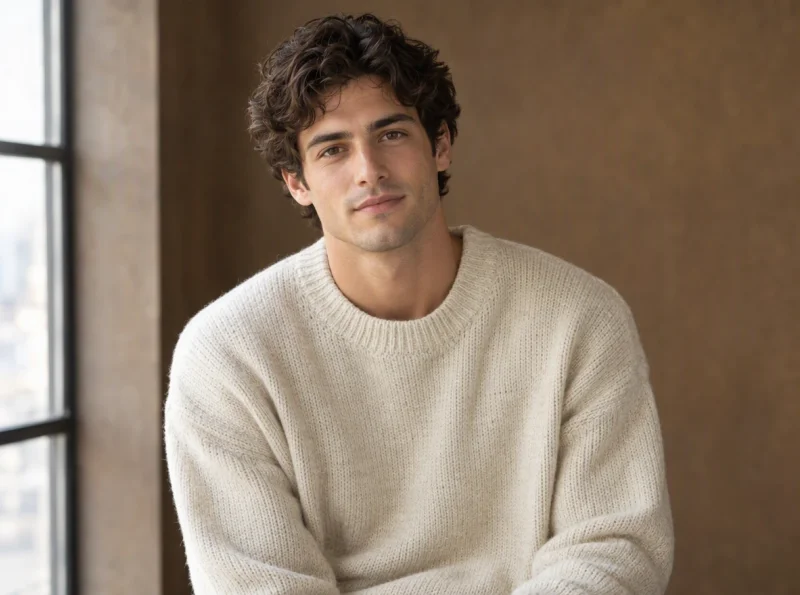
Portrait source example of a man in a cream knit sweater

Portrait Styling

Explore changes to clothing, surroundings, or lighting in an existing portrait. Specify the facial and subject details you want to retain as you develop another version.

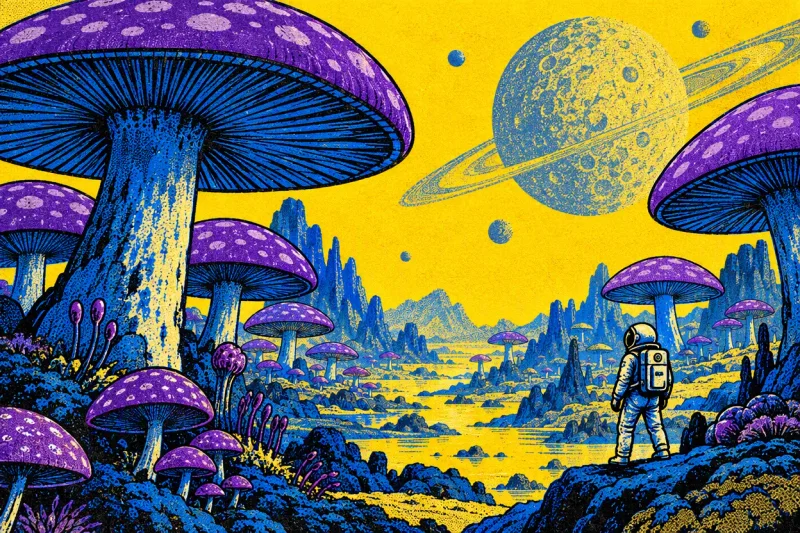
Screen-print illustration of an astronaut exploring an alien mushroom forest

Original Illustrations

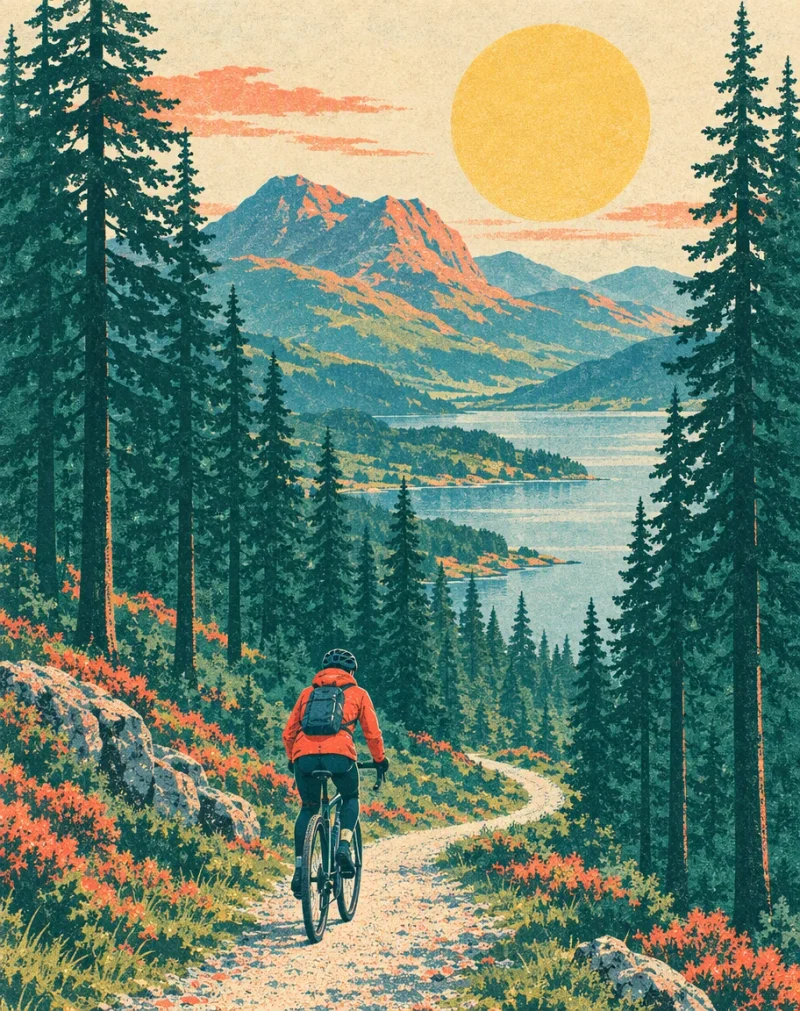
Turn a character, place, or story idea into an illustration. A written description can establish the setting and visual style for a book concept, presentation, or personal project.

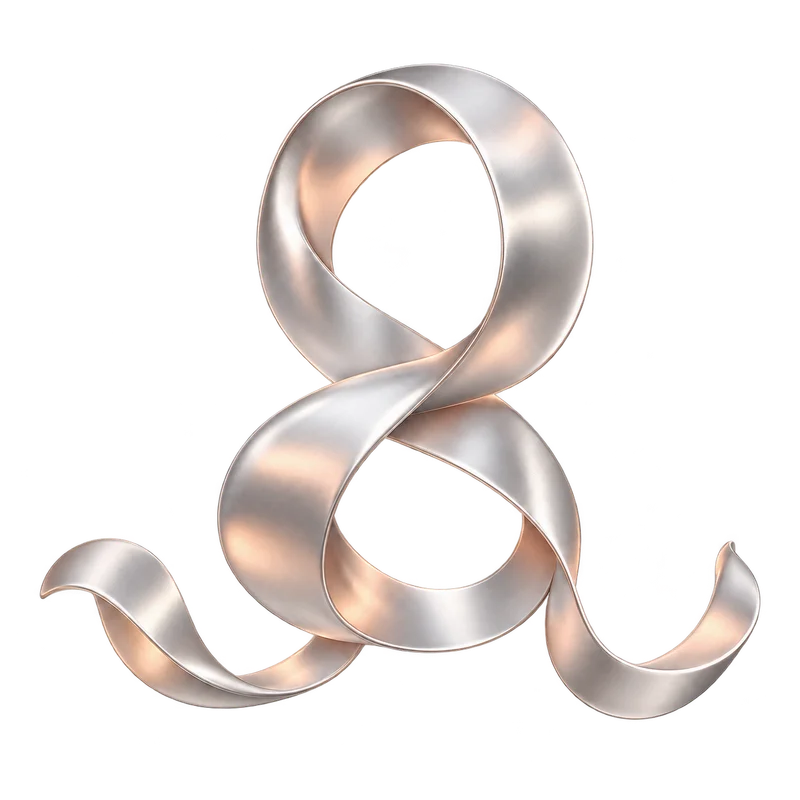
Independent silver ribbon design element with a genuine transparent background

Assets for Larger Designs

Create an isolated visual element with a transparent background. Place the downloaded asset over a colored layout, photograph, or other design without carrying a solid background into the composition.

GPT Image 2.5 Credit Packages

Buy credits with a one-time payment. Choose the amount you need and use the remaining credits whenever you return.

200 Credits
$9.90
  • 200 credits
  • One-time payment
  • Credits never expire
650 Credits
$29.90
  • 650 credits
  • One-time payment
  • Credits never expire
1,200 Credits
$49.90
  • 1,200 credits
  • One-time payment
  • Credits never expire
View pricing

Common Questions

GPT Image 2.5 FAQs

Find help with model choice, editing, output, and credits.

Which model should I choose for my image?

If you are still deciding on the composition or style, start with Flare to explore the idea. If you already know the image you want and have a detailed change in mind, consider Sunburst for that edit. You do not have to switch models simply because you are editing: Flare also supports focused changes.

Can I change one part of a photo and keep the subject recognizable?

Yes. Describe the part you want to change and the subject details you want to keep. This helps guide a focused edit, though details elsewhere in the image may also change. For a photo where identity or product appearance matters, compare the result with your original before using it.

Can I keep editing an image after the first result?

Yes. You can use a generated result as the source for another edit. You can also return to your original image to explore a separate version, which is useful when you want to try a different change without building on the previous result.

What file format should I use for a transparent image?

Use PNG or WebP when you need to keep a transparent background. JPEG does not retain transparency, so it will not preserve the empty areas you need when placing the image over another design.

What does the quality setting change?

Quality controls the level of detail in the image's rendering. It is separate from output size, so choosing a higher quality does not automatically make the image larger. The available quality choices depend on the model you select.

Can I request any image dimensions?

You can choose from the dimensions and aspect ratios available for your selected model. If the exact size you need is not offered, writing it in the prompt does not make it an available output setting. Choose a supported option that suits your layout; an exact required size may need adjustment after download.

Do I need a subscription to use credits?

No. Credits are purchased with a one-time payment, and they never expire. You can use the remaining balance on later visits without a recurring subscription.

Is this the official OpenAI image tool?

No. This is an independent image generation and editing tool that uses GPT Image 2.5 models from OpenAI. The site is not operated by OpenAI.

Start Creating

Create Your Next Image with GPT Image 2.5

Bring an idea or an image you want to change.

Create or Edit an Image